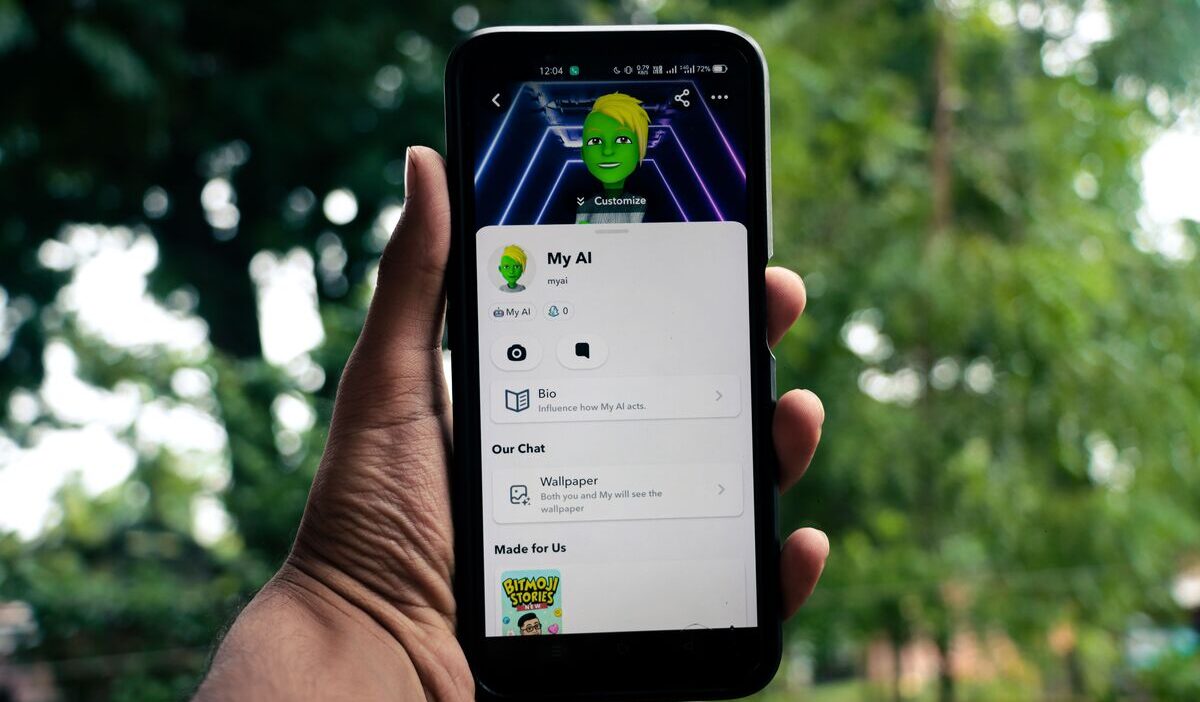
Snapchat’s My AI chatbot appears in the Chat feed and can answer questions, suggest places, help plan activities, and respond inside conversations.
How to get rid of AI on Snapchat? It depends on what you want to accomplish. You can unpin My AI, remove its conversation from the Chat feed, delete individual messages, or clear previously shared My AI data.
1. How to Get Rid of AI on Snapchat?
How can I remove the AI on Snapchat? The quickest option is to press and hold My AI in the Chat screen and open its conversation settings.
Snapchat currently provides two main choices:
- Unpin Conversation: My AI remains in the Chat feed but is no longer fixed at the top.
- Clear from Chat Feed: The conversation thread is removed from the visible Chat list.
Method 1: Via the Chat Settings Menu
How do I remove the Snap bot? This is the most direct method to get rid of AI on Snapchat from the Chat feed.
- Open Snapchat.
- Swipe right from the Camera screen to open Chat.
- Press and hold My AI.
- Select Chat and Notification Settings.
- Choose one of the following
- Confirm the action when prompted.
Method 2: Via Account Privacy Controls
Snapchat Settings can be used to clear data previously shared with My AI, but this method does not necessarily remove the chatbot from the Chat feed by itself.
Here’s how to get rid of AI on Snapchat on iPhone:
- Tap your Profile icon.
- Tap the gear icon to open Settings.
- Scroll to Privacy Controls.
- Select Delete Data or Clear Data, depending on the wording shown in your app.
- Tap Delete My AI Data or Clear My AI Data.
- Confirm.
And here’s how to get rid of AI on Snapchat on Android:
- Tap your Profile icon.
- Open Settings.
- Scroll to Account Actions.
- Tap Delete My AI Data or Clear My AI Data.
- Confirm.
>>> Read more: How to Login to EBT Account: Step-by-Step Access Guide
2. How to Clear Your Saved My AI Data and Chat History?
Removing My AI from the Chat feed only changes what appears in the app. It does not automatically erase messages or other content previously shared with the chatbot.
To delete a recent message sent within the last 24 hours:
- Open the conversation with My AI.
- Press and hold the message.
- Tap Delete.
- Confirm the deletion.
To request deletion of older My AI content, use the Settings path described above under Privacy Controls or Account Actions.
Snapchat says that content shared with My AI is retained until the user deletes it.
The company also notes that Clear My AI Data applies to the one-to-one conversation with My AI and does not automatically remove messages from group chats that included the chatbot.
Group-chat messages must be deleted separately when the app allows it.
| Goal | Action Required |
|---|---|
| Move My AI away from the top | Unpin Conversation |
| Hide the thread from Chat | Clear from Chat Feed |
| Delete previously shared content | Delete My AI Data |
| Delete a recent visible message | Press and hold the message, then tap Delete |
3. Why Can’t I Remove My AI From Snapchat?
The issue may involve an outdated app, account-specific rollout, or confusion between unpinning and clearing the conversation.
The App Is Out of Date
An older Snapchat version may display outdated menus or fail to show current My AI controls.
Open the App Store or Google Play Store, search for Snapchat, and install any available update. Restart the app afterward and check Chat and Notification Settings again.
The Feature Is Limited by Account Type
Snapchat originally connected some My AI management features with Snapchat+, which caused confusion about whether a subscription was required.
Current Snapchat Support instructions show how to unpin or remove My AI from the Chat feed without stating that Snapchat+ is required.
However, pinning My AI specifically to the top of the Chat feed is still documented as a Snapchat+ setting in a separate support article.
My AI Was Only Unpinned
Unpinning does not remove the conversation. It only stops My AI from remaining fixed at the top of Chat.
To remove the thread, press and hold My AI, open Chat and Notification Settings, and select Clear from Chat Feed.
The Conversation Reappeared After Use
If you search for My AI, open the chatbot, or send it another message, it can return to the Chat feed. This does not mean the earlier removal failed. Snapchat adds the conversation back because it has become active again.
4. How to Add My AI Back Later
Removing or unpinning My AI is reversible. To add the chatbot back:
- Tap the magnifying-glass Search icon.
- Search for My AI.
- Open the result.
- Send My AI a message.
The conversation should then return to the Chat feed. To pin it again:
- Search for or open My AI.
- Press and hold the conversation.
- Tap Chat and Notification Settings.
- Choose Pin Conversation when available.
Snapchat also documents a Snapchat+ control called Pin My AI for placing the chatbot at the top of the Chat feed.
5. Frequently Asked Questions
Do You Still Need Snapchat+ to Remove My AI?
Based on Snapchat’s current official removal instructions, Snapchat+ is not listed as a requirement for unpinning My AI or clearing it from the Chat feed. The steps are available through Chat and Notification Settings.
Does Clearing My AI Data Delete Messages Sent to the AI?
Clearing My AI data requests deletion of past content shared in the one-to-one My AI conversation. Snapchat says the server-side deletion process may take up to 30 days.
Can My AI See Your Location or Private Snaps?
My AI can use general location information when location permission has been granted to Snapchat or when you tell the chatbot where you are.
>>> Read more: How to Get Rid of Flies Outside Around Your Yard, Patio, and Garden
6. Final Thoughts
So, how to get rid of AI on Snapchat? It depends on whether you want to unpin it, remove the visible conversation, or delete previously shared data.
Use Unpin Conversation when you only want My AI moved away from the top. Choose Clear from Chat Feed when you want the thread hidden from the Chat list. Then use Delete My AI Data in Settings when you also want Snapchat to process a deletion request for stored one-to-one My AI content.